Categories
Uncategorized

Uncompress ZIP files on iPhone

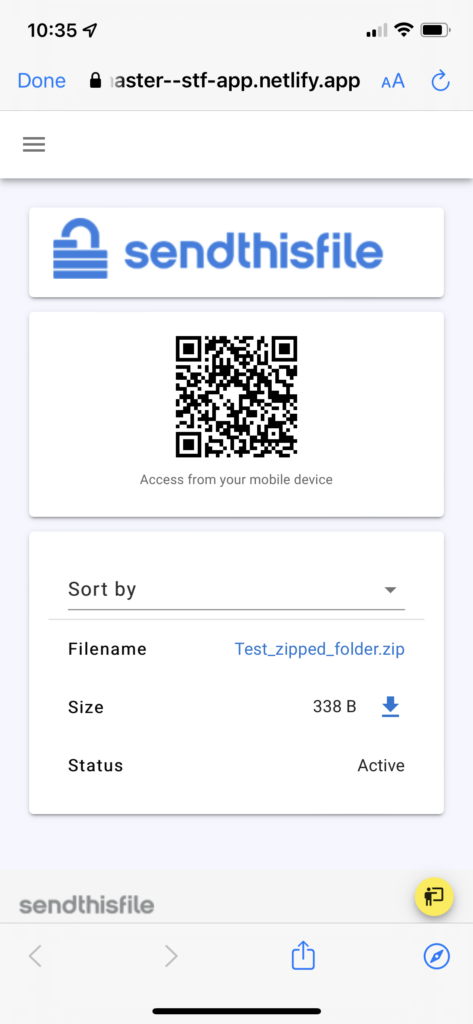
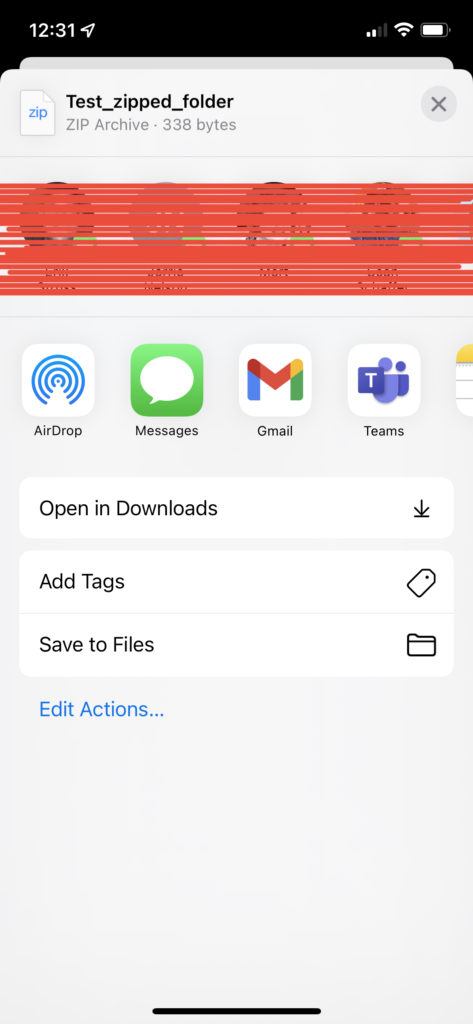
Click the download link from the email or text message you received. After you have downloaded the zipped folder, follow the steps below:

  • Click the download link from the email or text message you received.
  • You will be asked which browser you want to use, select the browser to open the download link.
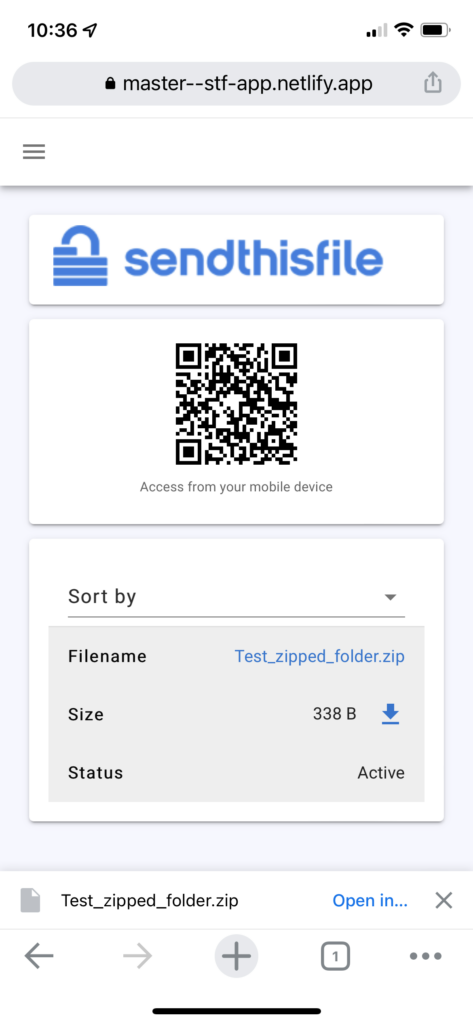
  • Click on the file name to download.
  • You will see at the bottom of the screen, the file was downloaded.
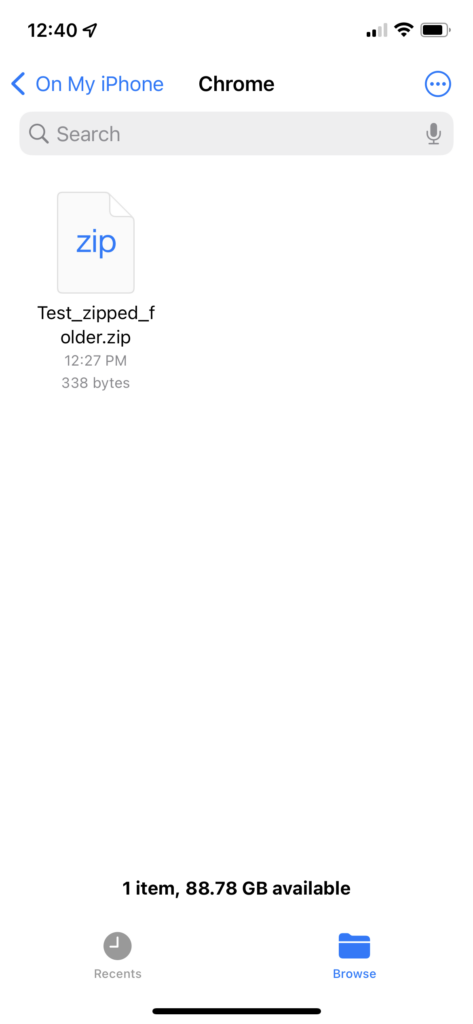
  • Open the Files app, then find the ZIP file or archive you want to uncompress. OR open the internet browser you used and find the “Downloads” folder in the settings of that browser.
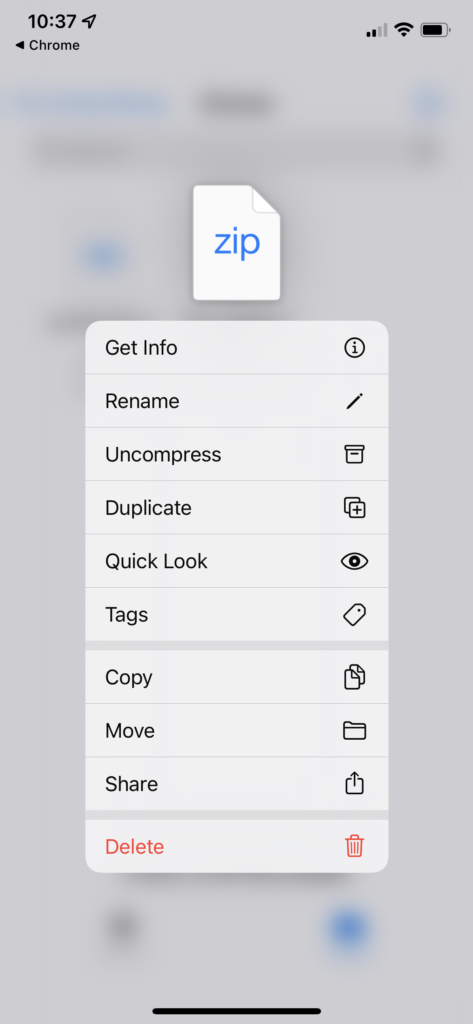
  • Long press (touch and hold) the ZIP file or archive.
  • From the options that populate, tap Uncompress.
  • A folder is created containing the files. To change its name, tap/touch on the name of the folder, then type in new folder name. OR long press (touch and hold), from the options, tap Rename.
  • Tap the folder icon to open the folder to view files in the folder.

You have successfully uncompressed a file/folder on your iPhone!
Categories
Uncategorized

Unzip files on a Mac

Unzip on mac computers

  • Double click the zipped file.
  • The file will automatically be decompressed by Archive Utility into the same folder the compressed file is in.
  • Access the extracted files by clicking the appropriate icons.

Unzip from the Finder

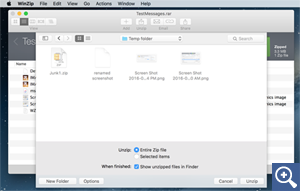
  • Click on the Unzip button.
  • From the drop down menu, choose to unzip your files to this Mac, iCloud Drive, etc.
  • A “Finder style” window will open. You can browse to the folder where you want the files saved.
  • Choose to unzip the Entire Zip file or Selected Items. You may also choose to Show unzipped items in the Finder.
  • Another option is to click the New Folder button. Then type the file name and click Create.

Unzip from the Context menu

With WinZip for Mac 2.0 or later, you can right-click (or press CTRL and click) your saved Zip files and use the Context Menu to unzip them. Click on Services at the bottom of the Context Menu, then choose Unzip, Email as Zip File and Add to Zip.

Categories
Uncategorized

Unzip files on Windows

After downloading the zipped folder, follow the steps below:

  • Open File Explorer and find the zipped folder.
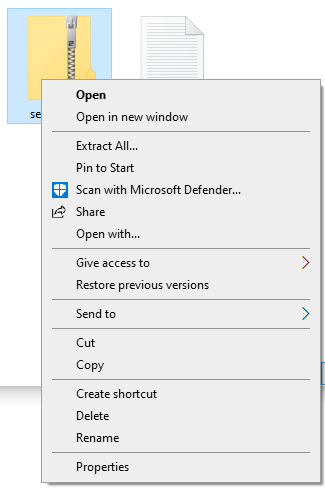
  • To unzip the entire folder, right-click to select Extract All, and then follow the instructions.
  • To unzip a single file or folder, double-click the zipped folder to open it. Then, drag or copy the item from the zipped folder to a new location.