Categories
Uncategorized

How to send to multiple recipients?

Need to send the same file to multiple people? No worries, we have you covered. Keep reading to find out how to send to multiple recipients via email address or mobile number.

Open the SendThisFile website and log in to your account.
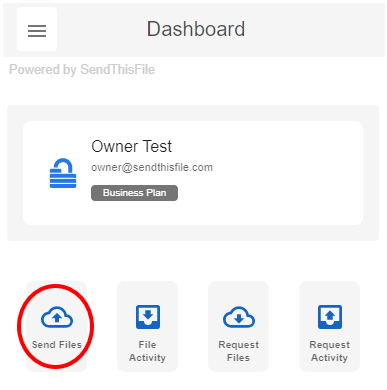
Select Send Files.
Enter in email address or mobile phone number of recipient. If you have contacts saved in the Contacts section, you can start typing and the contact will appear for you to select. Or you can select the Contacts icon to select that recipient.
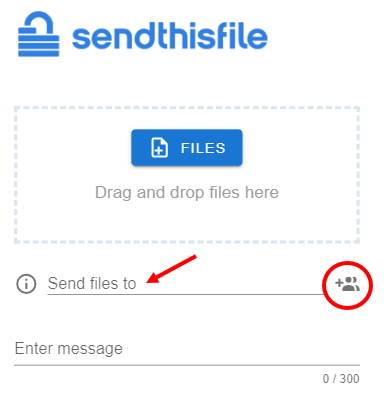
To send to multiple recipients, simple enter the recipient (or select from the Contacts icon) then select space, return, or ‘Tab’. Note: Options may vary per device you are using.
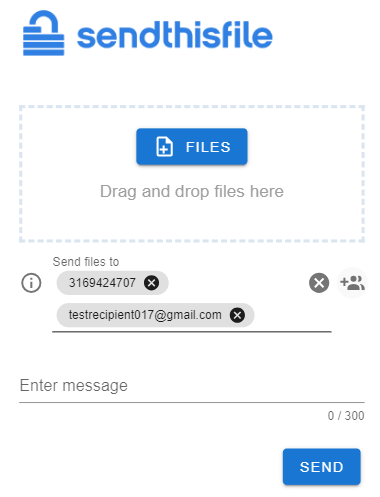
When sending to multiple recipients, think of it as a Blind Carbon Copy (Bcc) where each file transfer is only to 1 recipient. This means that each recipient will receive the file you attach separately. The multiple recipients will not see the other recipients.
Categories
Uncategorized

Unzip files on an Android

Wondering how to unzip or decompress a zipped file on your Android mobile device? Read further to find out how.

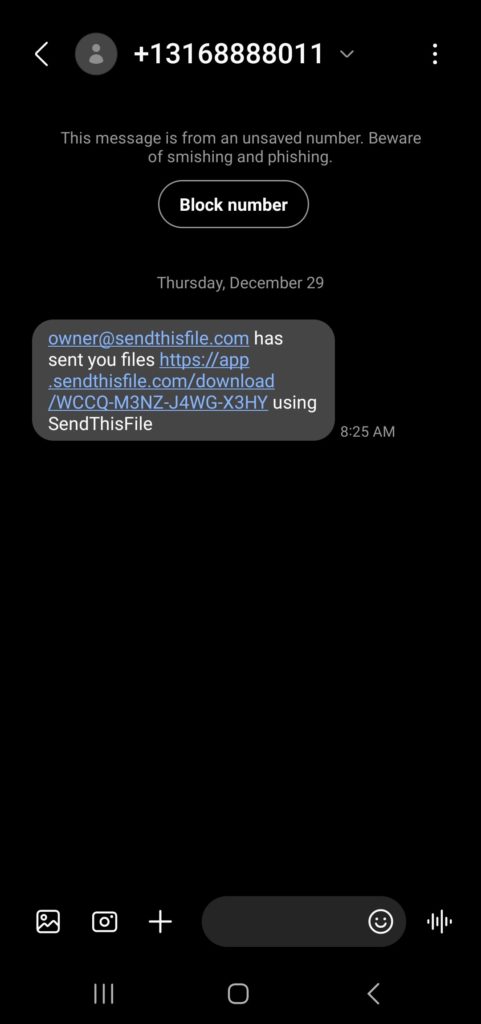
When someone sends you a file, you will receive an email or a text (SMS) message. In that email or text, there is a download link.

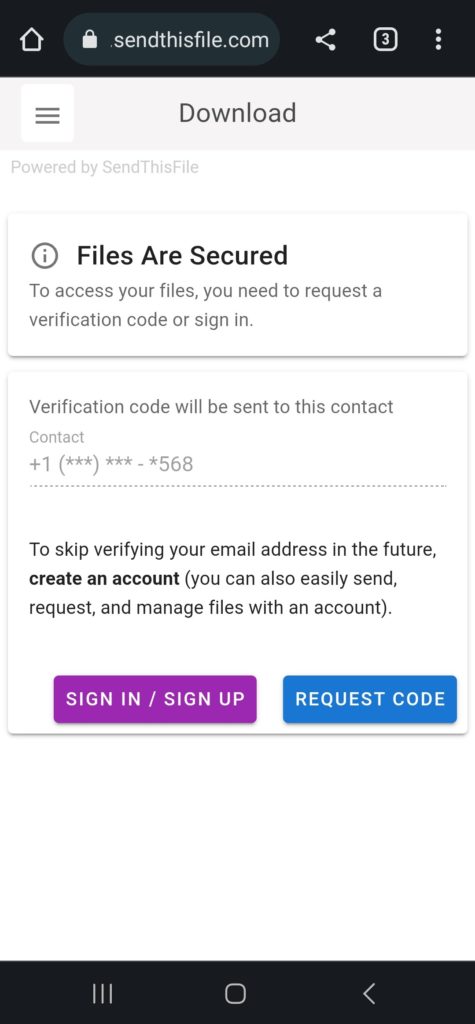
Once you tap the link, you will be prompted to enter a code or Sign up/ Sign in. This is for security purposes so that no one else can get the file that you have been sent.

If you select “REQUEST CODE”, then a code will be sent to you as a text (SMS) message.

After you enter the code successfully, then you can open or save the file sent to you.

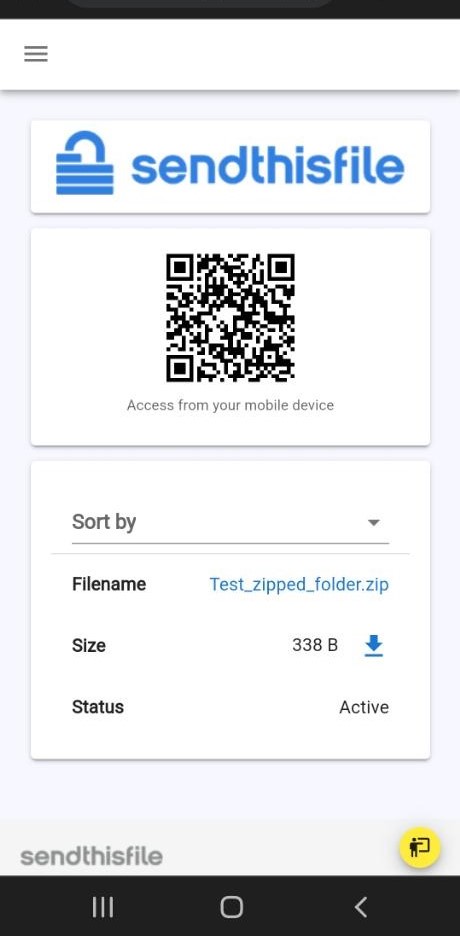
Tap the file name or the download icon.

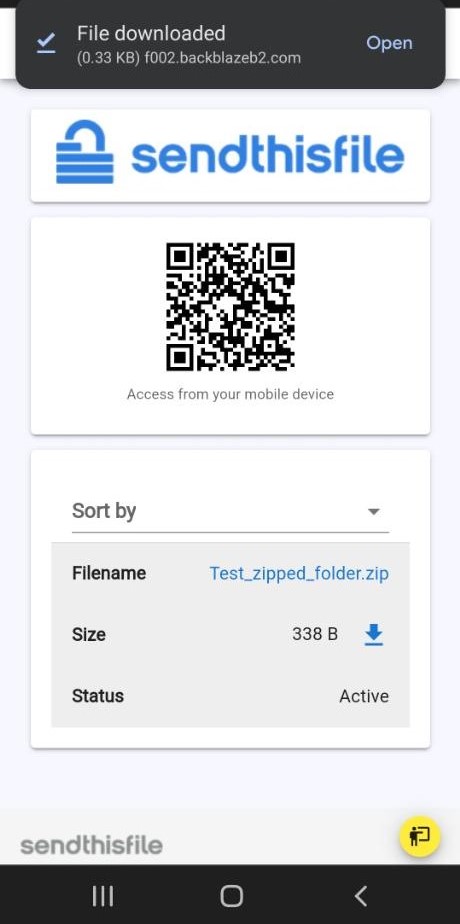
You can see that the file has been downloaded from the notification section at the top of the screen.

To open this file, tap “Open” next to “File downloaded” or open the Files app by Google.

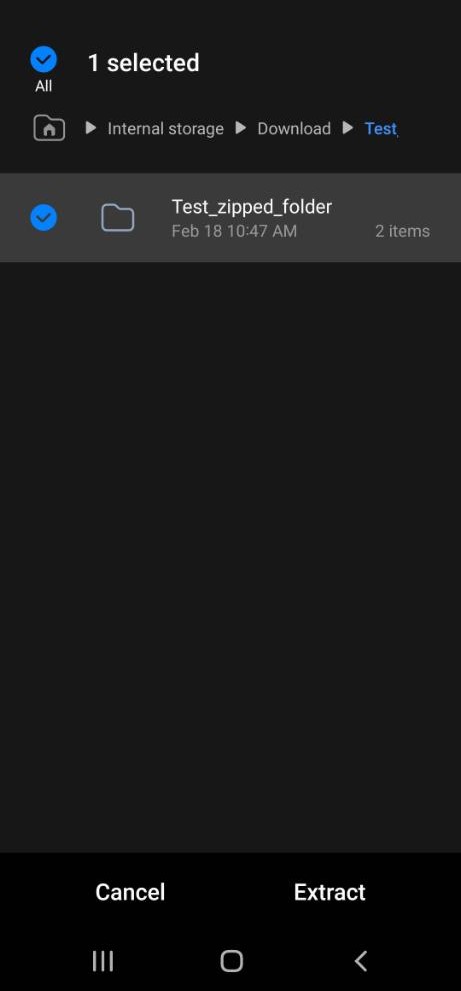
After selecting the .zip file, a pop-up appears at the bottom of the screen to “Cancel” or “Extract”.

Tap “Extract”.

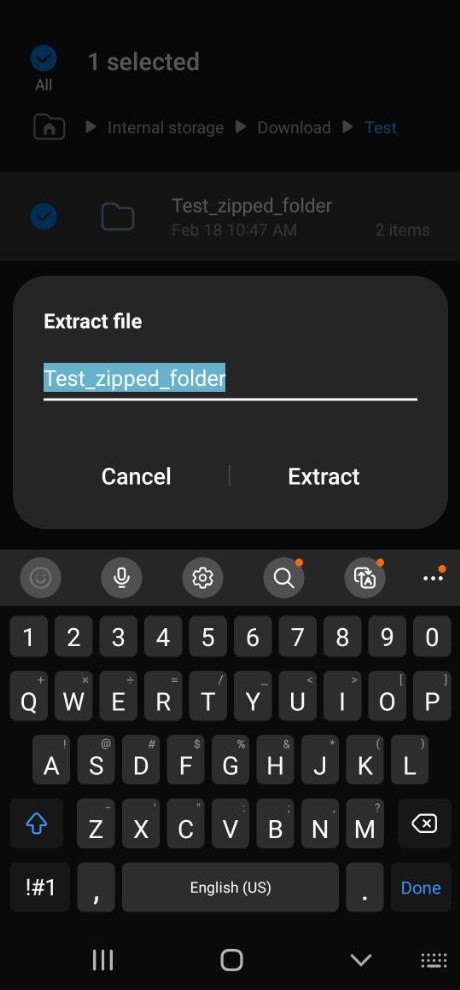
A pop-up box allows you to rename the folder, if you choose.

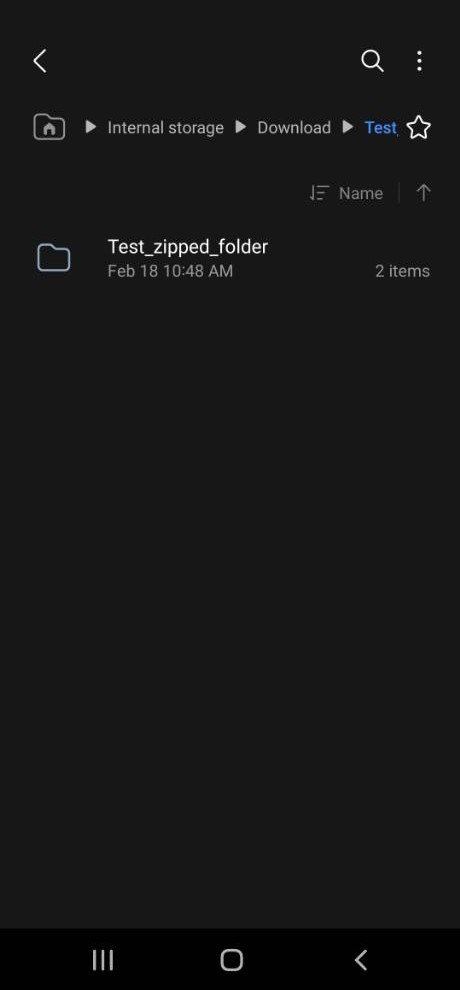
Then you will see the folder, unzipped.

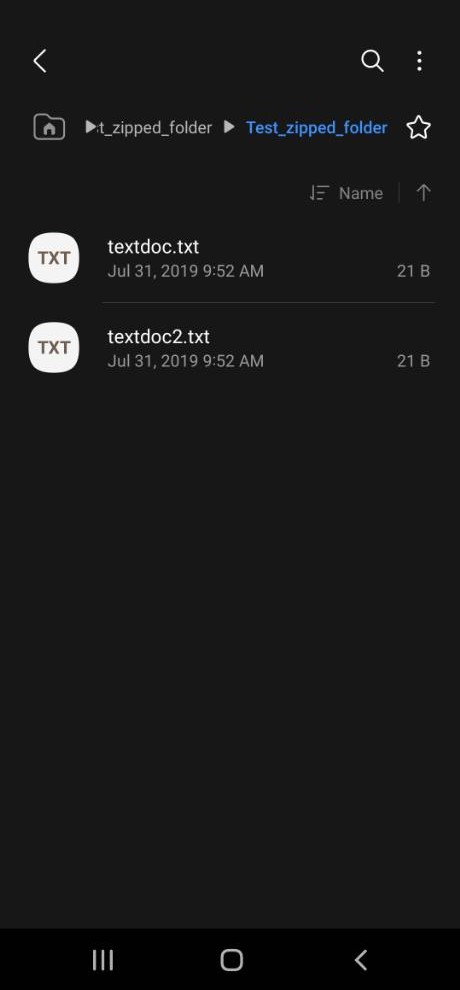
After tapping the folder name, you will see the files within the folder.

You have successfully unzipped the file/folder on your android device!